Manage Project
As a Project Leader, you have full control over managing projects within this HRIS. You can create new projects, manage Kanban boards, assign issues, and track progress efficiently.
List of Manage Project Features
1. New Project
A Project Leader can initiate a new project by providing the following details:
- Project Name: The name of the project.
- Date Finish Expectation: The expected completion date of the project.
Project Card
Each project is represented as a Project Card, which includes the following management features:
1. New Board
A Kanban Board is required to organize project tasks effectively. A Project Leader can create a new board by:
- Board Name: Specify the name of the new board.
2. Edit Board
Managing existing boards includes the following options:
- Select Board: Choose an existing board to manage.
- Delete Selected Board: Remove a board permanently.
- Rename Board: Change the board name as needed.
Issues Management
Issues represent tasks or work items within the Kanban Board. A new issue can only be created after a board has been added.
1. New Issue
Creating a new issue requires:
- Select Board Name: Assign the issue to an existing board.
- Set User(s) Assignee(s): Select users responsible for completing the issue.
- Summary: Provide a brief title, e.g., Bug Fixes.
- Description: Add detailed information about the issue.
2. Edit Issue
Managing an existing issue includes:
- Select Board Name: Reassign the issue to a different board if necessary.
- Set User(s) Assignee(s): Modify assigned users.
- Summary: Update the issue title.
- Description: Modify the issue details.
- Delete Issue: Remove the issue from the project.
Example of a Managed Project
Below is an example of a Project Manage View for a Project Leader:
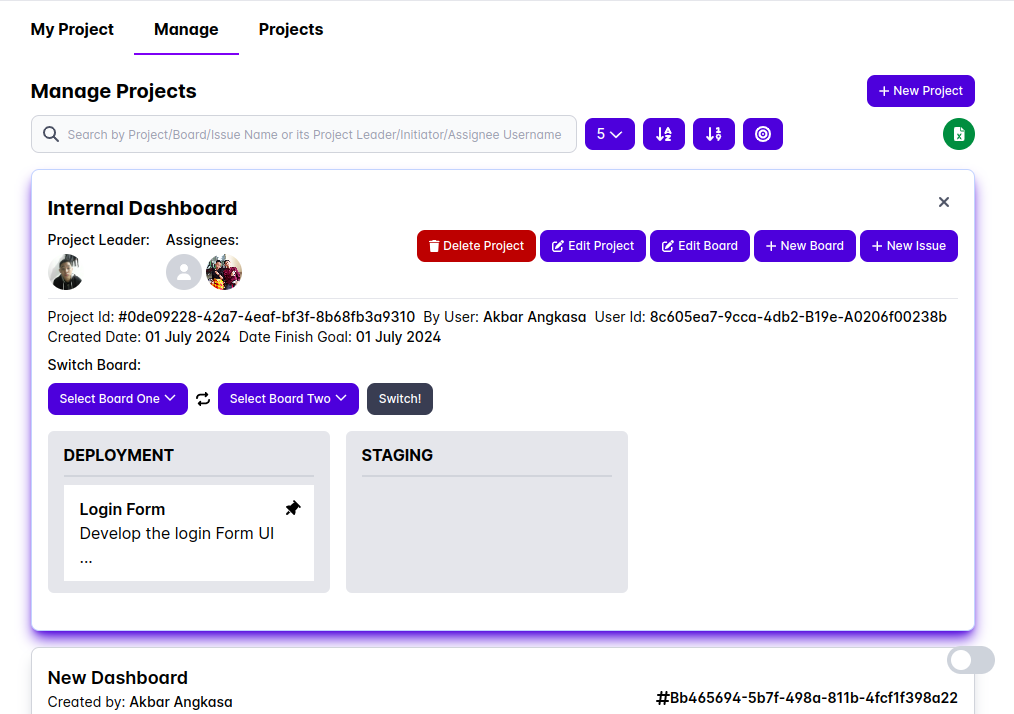
This interface allows Project Leaders to create, assign and track progress efficiently using the Kanban Board.
By utilizing these features, a Project Leader can ensure that project tasks are well-organized and efficiently managed. 🚀