Set Attendance Location
The Set Attendance Location feature allows Admin to configure their attendance location settings, including specifying attendance types, selecting location coordinates, setting shift times and enabling face recognition.
List of Set Attendance Location Features
1. Set Attendance Location Type
Admin can define the type of attendance location, which determines how and where attendance is recorded:
- General Designated Location: A fixed attendance location applicable to all Admin.
- Group Designated Location: A fixed attendance location assigned to a specific group.
- Group Roaming Location: A flexible location for a group, allowing movement within an area.
- Individual Designated Location: A fixed attendance location assigned to an individual user.
- Individual Roaming Location: A flexible location assigned to an individual user, allowing movement.
2. Set Attendance Location Assignee(s)
Depending on the selected attendance type, Admin must assign users to the location:
-
For Group Locations (Group Designated / Group Roaming):
- Admin can select multiple users as assignees.
- Users assigned to the group location must adhere to the defined location settings.
-
For Individual Locations (Individual Designated / Individual Roaming):
- Admin should assign only one user.
- If a single user is to be assigned, it is recommended to use the Individual type.
3. Set Attendance Location Place Name
- Specify the name of the location where attendance will be recorded (e.g., Main Office).
4. Specify Attendance Location (Non-Roaming Locations Only)
For non-roaming locations, Admin must define the exact location where attendance should be recorded. This can be done using one of the following methods:
- Search via Map UI: Use the integrated map interface to search and select the desired location.
- Manual Input: Enter the Longitude and Latitude coordinates of the attendance location.
5. Radius Tolerance
- Define the radius tolerance (e.g., 5 meters), specifying how far a user can be from the designated location while still being able to record attendance.
6. Assigned Shift
Admin must specify the assigned working hours for attendance tracking:
- Start Time: The time attendance begins.
- Finish Time: The time attendance ends.
7. Face Recognition AI
Admin can enable or disable Face Recognition AI for attendance verification:
- Enabled: Requires facial recognition for attendance submission.
- Disabled: Allows attendance submission without facial recognition.
Example of Set Attendance Location View
Below is an example of the Set Attendance Location interface:
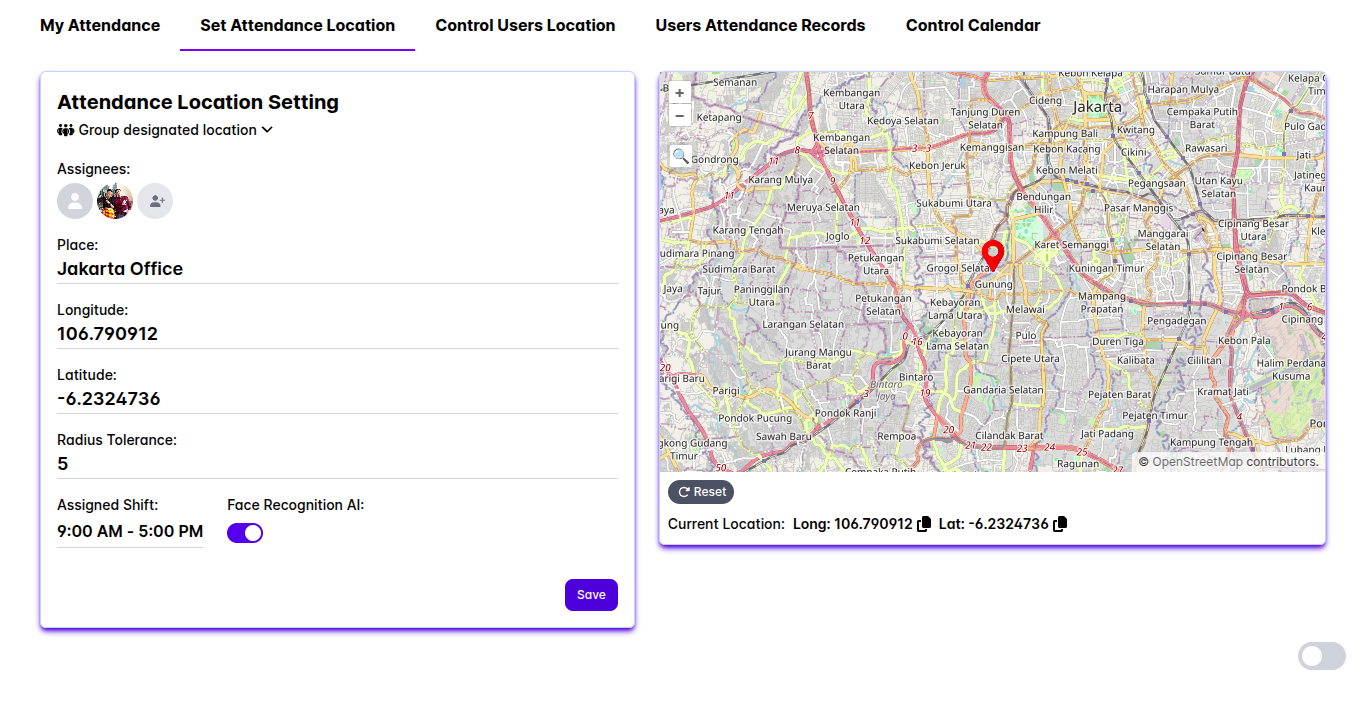
This interface provides an easy way for Admin to configure attendance location settings with map integration, shift management and security options.
By using the Set Attendance Location feature, Admin can accurately define attendance locations, assign users effectively, ensure compliance with attendance policies and streamline attendance tracking. ✅